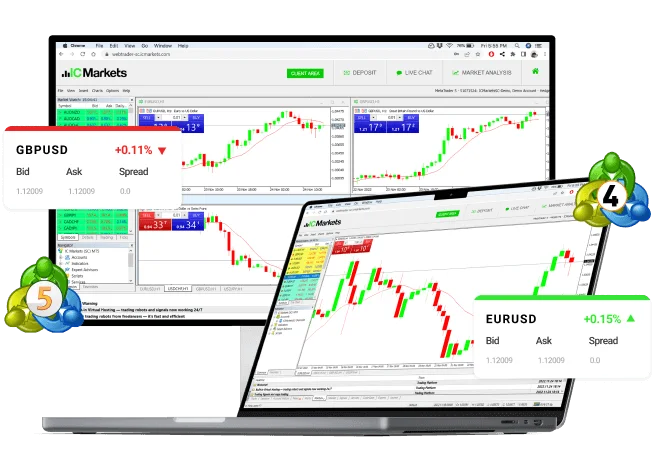
For traders who rely on macOS, accessing platform tools often requires navigating a few technical hurdles. While MT4 isn’t natively supported mt4 for MacOS, there’s a straightforward way to set it up and ensure seamless trading. This guide outlines the steps to get MT4 running efficiently on macOS.
Step 1: Set Up a Compatibility Environment
Since MT4 is designed for Windows, running it on macOS requires a compatibility layer. Tools like Wine or PlayOnMac are popular choices to bridge this gap. These applications allow macOS to execute Windows-based programs without major system alterations.
• Download Wine or PlayOnMac from a trusted source.
• Install the tool following the on-screen instructions provided during the process.
• Ensure that your macOS system permissions are set to allow installations from these tools.
You’ll need an updated version of macOS to avoid potential compatibility issues during these initial steps.
Step 2: Download the MT4 Installation File
With the environment ready, you’ll need the MT4 program file. Start by downloading the installer directly from a trusted broker or reputable source. Always ensure the source is legitimate to avoid files that may compromise your trading activities.
Once downloaded, the MT4 installation file (usually ending in .exe) will be ready for execution. This, combined with your compatibility environment, will make the setup possible.
Step 3: Install MT4 on macOS
With the compatibility software set up and the MT4 installer on hand, proceed as follows:
1. Open the compatibility software (Wine or PlayOnMac).
2. Use the “Run program” option and select the MT4 installation file.
3. Follow the installation prompts that appear. This should mirror the standard Windows installation process.
4. Once installation is complete, verify everything was set up correctly by launching MT4.
Compatibility software like PlayOnMac often creates shortcuts, ensuring easy access to the platform from your desktop.
Step 4: Optimize Your Experience
After installation, be sure to connect your trading account. Adjust settings as needed to optimize charting tools, interface layouts, and performance.
For enhanced reliability, make regular updates to the compatibility software and the MT4 platform itself. This ensures you stay protected from security vulnerabilities and unwanted glitches.
Your macOS Trading Solution
Setting up MT4 on macOS isn’t as intimidating as it may seem. By following this guide, traders can enjoy a hassle-free installation process and unlock all the features they need for successful trading. Start your setup today to keep pace with market movements.